

The WCAG is the ever-evolving final say in implementing accessibility but, like any work in progress, some of the guidelines and criteria are vague.
The abstractness of the material combined with the technological rigidity of the automatic auditing tools currently on the market contributes to a stalemate in development – accessibility testing and implementation is still largely manual. There are a few paid and free tools used for automatic accessibility analysis but they generally cover only 20-30% of potential accessibility issues. An interface can get a perfect accessibility score and still be totally inaccessible, a phenomenon illustrated wonderfully by Manuel Matuzovic in his blog post Building the most inaccessible site possible with a perfect Lighthouse score.
In this post, I hope to help smooth out some rocky spots in web accessibility-oriented development. Consider this a minimalist toolkit for inclusive web development… and an illuminating glimpse into the types of problems that users of assistive technologies run into.
Get out of the darkness
Have you ever tried to build a visually-driven graphic interface without looking at the screen?
Impossible, right? But here comes the irony – largely due to the lack of facilitative tools at their disposal, developers are visually impaired when implementing accessibility features.
While the graphic interface and automated auditing tools alert developers of some accessibility issues (ie: insufficient color contrast, missing “lang” meta tags, etc.), other issues (ie: unreachable essential buttons or form elements) are overlooked, leaving developers “blind” to how assistive technologies interpret the page or features.
Hot take: Testing content for assistive technologies should be as much a part of standard protocol as testing for mobile devices or device emulators.
What are assistive technologies?
Assistive technologies are assistive, adaptive, and rehabilitative devices for people with impairments that make it difficult to perform daily activities, independently or with assistance.
Wikipedia
One such technology is a screen reader, which is software installed on the operating system that uses text-to-speech features to convey the interface’s content and features to people with heavy visual impairments.
Why a screen reader?
Screen readers are by no means the only assistive technology out there, but there are a few key features making them (IMO) the ultimate assistive technology for developers to benchmark the accessibility of their work because:
- There are free screen readers available for all platforms
- Screen readers and other assistive technologies use the same OS and browser accessibility APIs, so repairing accessibility issues for screen readers repairs issues for other assistive technologies as well.
How do I get my hands on a screen reader?
Here are some market-dominating options that (according to Web AIM’s 2019 survey) cover approximately 53% of screen readers users:
Windows
NonVisual Desktop Access (NVDA) is a free, open-source, portable screen reader for Microsoft Windows built by Michael Curran in 2006.
Wikipedia
In 2019, NVDA became the first and most commonly used screen reader in the market, passing Jaws that held that title for decades (JAWS was initially created in the mid-‘80s for MS-DOS). NVDA now has a market share of 40.6%.
You can download NVDA here.
JAWS (Job Access With Speech) is a computer screen reader program for Microsoft Windows that allows visually impaired users to read the contents of the screen, either with text-to-speech output or with a refreshable Braille display. JAWS is produced by the Blind and Low Vision Group of Freedom Scientific.
JAWS is not open-source or free to use but it’s notable, being that it was the market-dominating screen reader until just last year when it fell second to NVDA. It still has a market share of 40.1%, though.
Mac OS
Apple Inc.’s macOS, iOS, tvOS, watchOS, and iPod operating systems have their own conveniently built-in screen reader called VoiceOver. Using VoiceOver, the user can access their Macintosh or iOS device based on spoken descriptions and, in the case of the Mac, the keyboard. The feature is designed to increase accessibility for both visually impaired and dyslexic users.
However, even though Apple’s OS and devices all use VoiceOver, each device requires different software and different features. Tackling all the issues on one device does not 100% guarantee that all your other Apple device types/OS are covered.
To start VoiceOver on Mac, press Command+F5
A Side Note About What Not To Use
My recommendation is to avoid using ChromeVox as a screen reader for testing. ChromeVox is a Chrome extension that simulates a screen reader’s interactivity and behaviors. For education purposes it’s amazing BUT it doesn’t accurately replicate the standard screen reader experience, as it works with the standard DOM tree, not the accessibility tree.
Testing your interface with a keyboard and a screen reader
Now that you have a screen reader installed and running, let’s start with a few tests.
Testing tabbing/navigation with a keyboard
First, check if the page or feature is accessible to keyboard users. Tab your way through the interface and, when you’re done, address these questions:
- Did the page focus go through all the interactable elements (links, buttons, input fields, menu items, etc.)?
- Were you able to indicate the focus on each point?
The answer to both should be yes. If the answer to either one of these questions is no, you have some fixing to do.
Scan the interface with a screen reader
Start up your screen reader. Most screen readers are very user-friendly and will provide you with operating instructions, read you the page content and indicate landmarking such as buttons, links, and headings. You can adjust speech rate to your preference.
Changing Speech Rate on NVDA
- With NVDA running, press Insert + N to open the NVDA menu.
- Choose Preferences > Voice Settings.
- Use the sliders to adjust the speaking rate.
Changing Speech Rate on VoiceOver
- In the System Preferences, go to the accessibility window.
- On the sidebar, select Speech.
- Use the sliders to adjust the speaking rate.
Once your screen reader is adjusted, start moving through the interface and address these questions:
- Are the texts being read by the screen reader reflecting what’s on the screen?
- When encountering interactable elements, is there an indication of their type and how to interact with them?
- When following the screen reader’s instructions, are elements reacting as expected?
Complete a flow
If you are working on a specific feature, you must be able to complete the entire flow using a screen reader. Check for navigation impediments, consistent operation, correct function and correct outcome when encountering interactive elements.
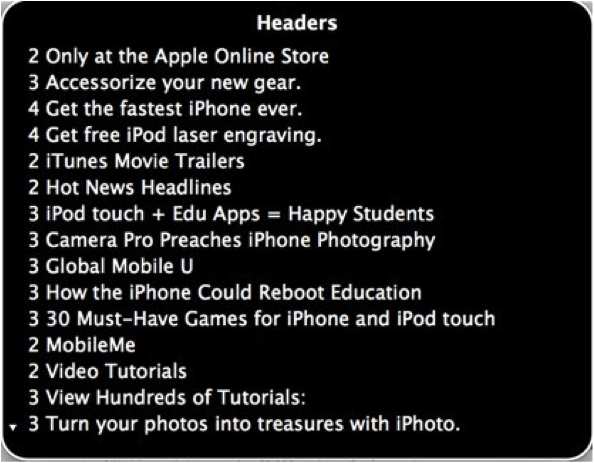
Check the heading structure
Correct heading structure is an essential feature for screen reader users because it allows them to navigate in an efficient and non-linear way.
Screen readers have a feature that displays the page’s heading structure.
Open the headings list and answer these questions:
- Does the heading structure organize and represent the page content correctly?
- Does it function as a complete table of contents for the page?
If the answer to either one of these questions is no, the page’s heading structure needs some work.
Displaying the headings list NVDA: Insert+F7 Displaying the headings list VoiceOver: Control + Option + U
Next steps
The tests described above are only a small portion of a full accessibility test, but they provide good insight on how assistive technologies interact with your application or page.
Screen readers have a lot more features and options than the ones covered in this article. Full documentation of NVDA can be found here. The documentation for VoiceOver can be found here.
Conclusion
Just installing a screen reader on your machine and playing around with it a little can give you a new layer of functional understanding. The next time you have to develop an accessible component or to fix the accessibility of an existing one, you’ll already have enough background knowledge to deal with it effectively.
In related news, the Internet just recently celebrated its 50th birthday, and its first and foremost credo has always been the democracy of knowledge and open, universal access to data. Our responsibility as web developers, designers, and product planners is to build and keep it as inclusive as possible – and upholding accessibility is doing just that.