
Published on September 28, 2026 Reading time: 4 min

2026-Q2 new product and feature updates

Post category: Products
A decorative image showing gears.

For the quarter ending June 30, 2026, here are some product release highlights.

New Products

Introducing Evinced Learn

In April, Evinced partnered with Knowbility to launch Evinced Learn, a free accessibility training platform that helps bridge the gap between accessibility theory and real-world implementation. With role-based tracks for fundamentals, UX designers, web developers, and mobile developers, Evinced Learn provides practical guidance for building more inclusive digital experiences.

Enterprise customers can integrate Learn into their own learning management systems using SCORM packages, while IAAP-certified professionals can earn continuing education credits toward certification renewal. Experienced accessibility practitioners can also test out of courses through pre-assessments and continue using the course materials as an on-demand resource.

New Features

Scan entire iOS apps with one click

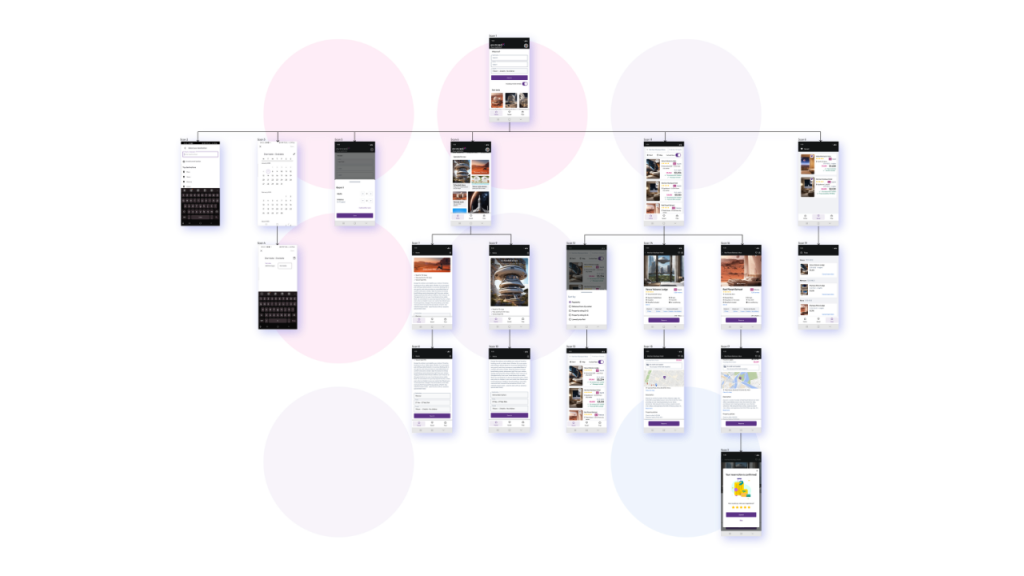
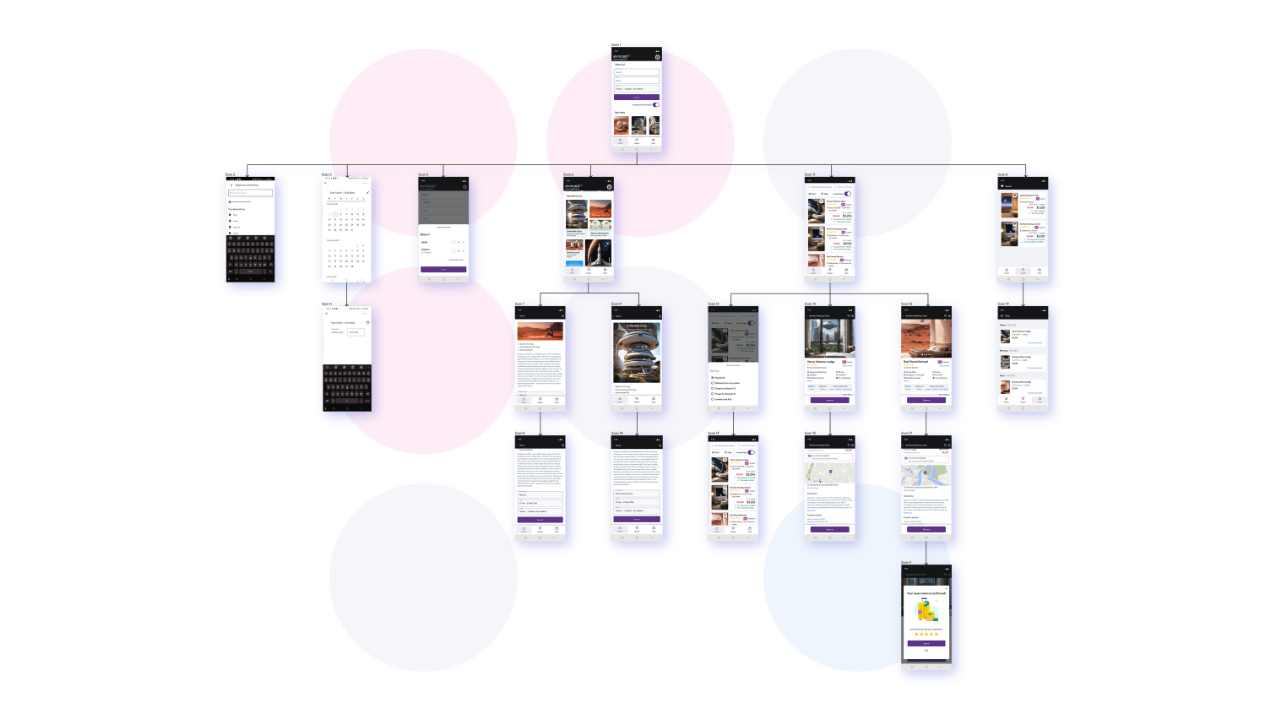
App scanning capabilities are now available for iOS in Mobile Flow Analyzer. One click scans the entire app, identifying accessibility issues throughout the mobile application, not just individual screens, and it also creates an app navigation map that shows the relation between each screen in the application. Previously only available for Android, now iOS teams can automatically explore app flows, scan up to 1,000 screens in a single session, and uncover accessibility issues faster with improved performance. Launched June 2026
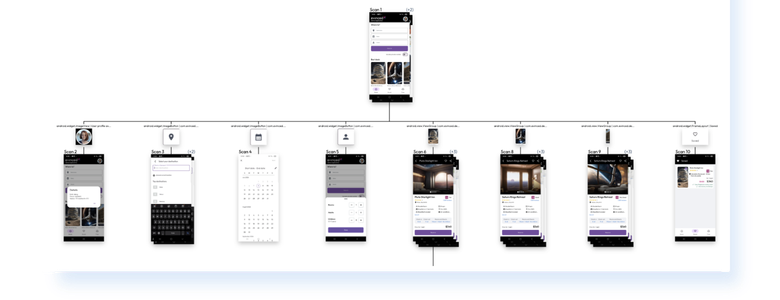
Image: iOS app navigation map from Mobile Flow Analyzer

Dark Mode now available across multiple products

Dark Mode is now available in Mobile Flow Analyzer and Web Flow Analyzer, providing an alternative viewing experience during testing.

The interface automatically matches the user’s system appearance settings and can also be customized manually to fit individual preferences and light sensitivity needs. Launched May 2026

Bring Site Scanner data wherever you need it

Site Scanner now includes a public REST API, allowing teams to automatically pull data for properties, scans, accessibility scores, and issues directly into their own systems. Teams can integrate Site Scanner data into dashboards and reporting workflows, reducing the need for manual exports and making accessibility reporting easier to scale. Launched June 2026

Even easier setup for Automation SDKs for Web

AI agent users can now take advantage of new built-in setup skills to integrate Automation SDKs for Web into existing test environments with even more ease. 

The skills deliver guidance tailored to a developer’s existing test automation setup – from configuring the Evinced SDK and adding accessibility checks to existing tests to setting up rules and reporting. These new skills can make even the most complex test automation setups a breeze to integrate. Available for Cypress JS SDK, Playwright JS SDK, TestCafe JS SDK, WebdriverIO JS SDK, and Selenium JS SDK. Launched June 2026

Improvements

Session sharing in Mobile Flow Analyzer

We also introduced session sharing in Mobile Flow Analyzer, allowing teams to export and import complete Mobile Flow Analyzer sessions. Whether collaborating with accessibility specialists, handing work off to teammates, or continuing testing across distributed teams, session sharing makes it easier to review findings together. Launched April 2026

Test dialogs and their launchers with Unit Tester

Unit Tester now supports more comprehensive testing of dialog windows. Developers can test modal and non-modal dialogs that are already open, or test both the element that launches a dialog and the resulting dialog together. Launched April 2026

New Validations for Mobile

In Q2, we introduced new automated accessibility validations, while expanding coverage across our mobile testing solutions.

  • Meaningful-headings is a new LLM-assisted validation that checks whether headings accurately describe the content that follows. This helps teams meet WCAG 2.4.6 and improve navigation for users of assistive technologies. Launched April 2026
  • Ignored-by-assistive-technology is a new validation for iOS. It detects elements that are unintentionally hidden from screen readers and other assistive technologies, helping ensure important content remains accessible to users who rely on them. Launched June 2026

Additionally, screen-orientation-lock is now automatically validated across both iOS and Android without requiring Mobile Kit (launched June 2026). And visible-labels (for iOS) and keyboard-focusable (for Android) validations are now available in the Appium Python SDK, bringing existing accessibility checks to more automation workflows (both launched June 2026).

See where issues re-occur across Mobile Flow Analyzer and Automation SDK for Mobile

Both our Mobile products now report a tally of how many times and on which screens each particular issue appears. The idea is that the team can use this information as an aid for determining which issues to fix first. (Launched June 2026)

In brief

Web Flow Analyzer, and the Web Dashboard, now feature a redesigned filtering interface that makes it easier to find and review issues (launched in May 2026). Additionally, Web Flow Analyzer also offers new configurable screenshot capture methods that give users more flexibility when working with resource-intensive or complex websites, including sites with iframes (launched in May 2026).

For the full list of improvements and feature updates, please see our What’s New product update page (requires login).

Published on July 27, 2026 Reading time: 4 min

The end of guessing

Post category: Products
a new day

If you’re like us, you took the first rush of news coming in from recent developments in AI with a grain of salt. 

When somebody offered an AI tool that was going to automagically “remediate” websites, what we heard was that a system trained on inaccessible code (e.g., the internet) and prone to hallucinations was somehow going to be put in charge of the henhouse. 

This sounded like a terrible idea. And yet AI, and agentic coding, is extremely powerful – indeed, it’s an engineering marvel growing so quickly that many development teams are using it in sophisticated ways to write much of their code. 

Is there a middle ground? A way to, ahem, harness the power of agentic coding for accessibility in a way that doesn’t guess its way into a mess? That will produce accurate fixes, and reliably so? In the engineering world, the relevant buzzword here is deterministic. And it’s essential for any tool, from toothbrushes to software.

We think we may well have an answer, and we’re packaging that capability into three products today. We really do think of these products as a new day – a dividing line between the time when LLMs had limited usefulness, and the time when their opportunity, harnessed properly, is right in front of us.

The answer, for us, is to integrate our expertise into the agentic development loop in the form of tests. If we know how a component is supposed to behave, we can help the LLM write a test correctly, in real time, then evaluate the test results, in real time, and iterate with the LLM until the proposed code changes pass the test. And since this is agentic coding, it does this across many many pieces of code at a rate of speed that is unimaginable to a single developer. Think minutes per issue, not hours or days.

Let’s examine these new products, and how they make testing central to their effectiveness.

Product icons for Autopilot, Harness, and Resolve

Autopilot

Autopilot is our tool that runs inside CI systems and alongside a customer’s LLM. It detects accessibility bugs in code that developers commit into the pipeline, as we have done for years with our Automation SDKs. What’s different is that Autopilot can actually fix those bugs, test them to make sure the fixes are correct, then write the changes up for the developer to approve inside their normal pull request cycle. 

Note here that the developer is very much in the loop, but only for final approval at the end. Indeed, the developer may not necessarily even know that Autopilot is running until they see the request to approve the proposed code change. 

That pull request, by the way, will contain the fixes and the reasoning for the fixes. In itself, that’s an amazing educational tool. The teachable moment, like in high school, is when you get the graded homework back.

Harness

Harness shares much of this approach, but it’s imagined as an interactive tool for developers to use before they submit code. An accessibility pair programmer, if you will. 

Developers can ask Harness for help while building something for them – and have a build-test-fix loop operate automatically until that piece of code passes appropriate Evinced tests. 

Or Developers can ask Harness to review something already built, provide fixes, and test those fixes. 

Developers can use it to analyze and fix code where a web page (or mobile app) is in a certain state, too: for example, if a popup window has opened.

Resolve

In many ways, Resolve is the ultimate expression of our test-fix-test philosophy. 

Because Resolve operates on a list of pre-existing issues that you feed it. That list can come from a manual audit, or even a report from one of our analyzer or scanner tools.

As a first step, Resolve works to relieve developers of a tedious task by reproducing the issues – that is, to verify that they still exist in production. This verification is incredibly nontrivial, technically, but it’s powerful, not something an LLM on its own is good at, and it works for a startlingly high percentage of reported issues. 

Once an issue is verified, it’s fixed, and then verified as fixed. The developer reviews the fixed issues and takes the necessary next steps.

Getting started

More about all these products to come, and we are implementing them with select customers as we speak. If they sound like a fit for your team, feel free to reach out.

You won’t regret it. And we’re not guessing at that, either.

Published on May 5, 2026 Reading time: 5 min

2026-Q1 new product and feature updates

Post category: Products
A decorative image showing gears.

For the quarter ending March 31, 2026, here are some product release highlights.

New features

See a layout’s accessibility health at a glance

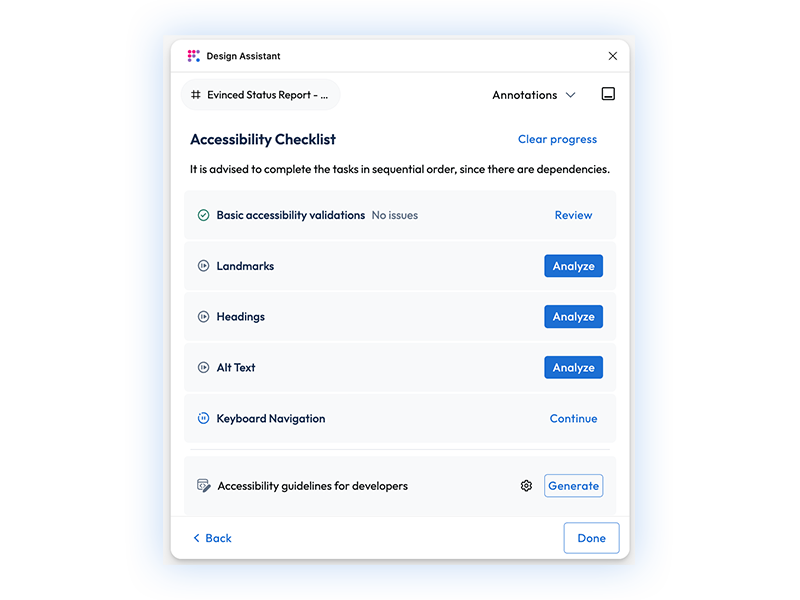
As of February 2026, Design Assistant now includes an Accessibility Status Report,  a report that tracks the accessibility of a layout at a glance. Designers can turn on this feature by clicking on the Settings icon next to the “Accessibility guidelines for developers” section in the Design Assistant window.

Image: Users can generate an Accessibility Status Report from the Accessibility Checklist window in Figma

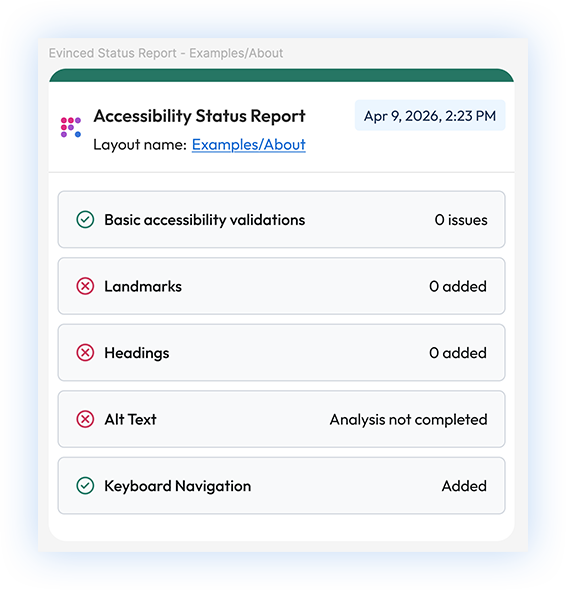
Once the setting is updated and saved, Design Assistant generates a dedicated frame below your layout that tracks accessibility, covering five key areas:

  • Basic Accessibility Validations
  • Landmarks
  • Headings
  • Alt Text
  • Keyboard Navigation

Image: The Accessibility Status Report provides a quick view of issues from the design window in Figma

Each section displays clear pass/fail/warning indicators and issue counts, so teams can quickly see what has been addressed and what still needs attention. Once generated, teams can review the accessibility status report even when the plugin window is closed.

Improvements

Improved cloud report experience for Mobile Flow Analyzer and Automation SDK for Mobile

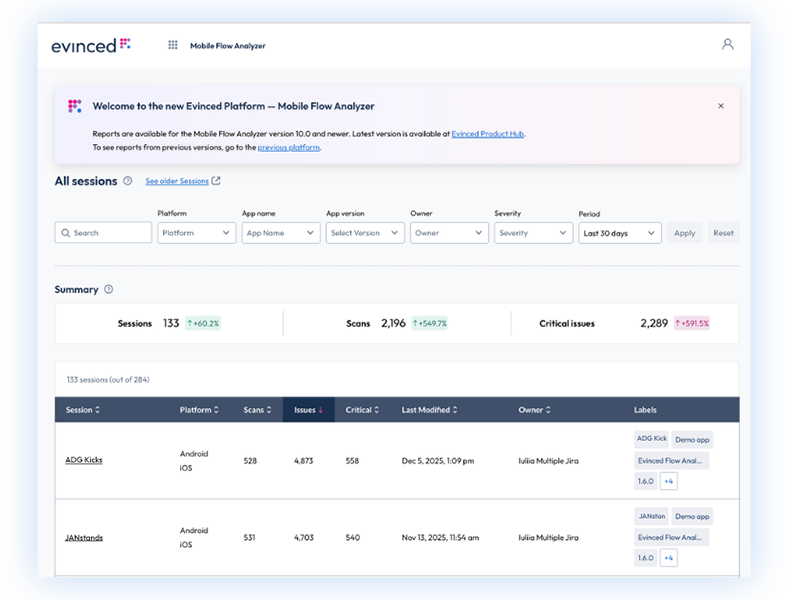
The experience for cloud-stored reports in Mobile Flow Analyzer and Automation SDK for Mobile now provides a significantly more powerful and unified way to seamlessly collect, organize, and visualize Evinced accessibility reports.

Customers can now search and filter session reports by keywords, platform (iOS or Android), app name, app version, owner, severity, and date range.

Image: Improved experience for cloud-stored reports for Web Flow Analyzer for Mobile

In addition, clicking on a session name displays more information:

  • The “Overview” tab provides charts and high-level stats such as total issues, critical issues, average issues per scan, and more.
  • The “All Issues” tab lists all issues in a table, detailing issue type, severity, scan, element description, associated ticket number (if applicable), and screenshot. The table can be searched and filtered by severity, issue type, and scan.

For current and future product versions onward, session reports will be stored automatically in the cloud as well as locally. No configuration is required; teams simply update to the latest product version and the session data will be sent to the new platform. 

The new experience is currently available for Mobile Flow Analyzer, and Automation SDK for Mobile (Appium Java, WebdriverIO, XCUITest, and Espresso).

Full page app scanning in Automation SDKs for Mobile (Appium)

Full page app scanning is now available in Automation SDK for Mobile via Appium, expanding on the app scanning capability introduced there in Q4.

With this update, our app scanning capabilities can crawl through an entire page – including content that requires scrolling to reach – rather than only scanning what is visible in the initial viewport. 

As with all app scanning reports from Evinced, results are de-duplicated and accompanied by an app navigation map showing the flow the scanner followed through the application.

Site Scanner enhancements

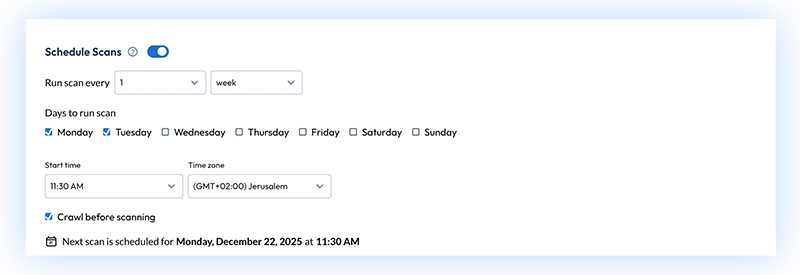
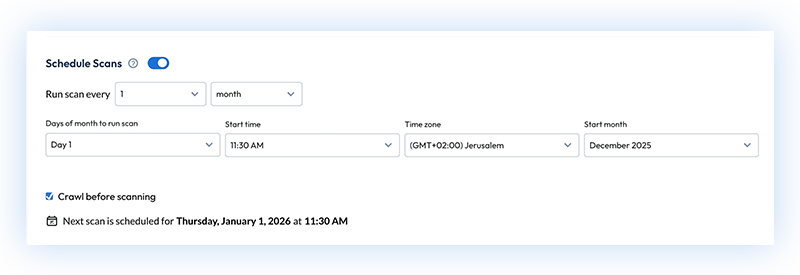
New scheduling options in Site Scanner gives teams more control over recurring scans. Teams can set weekly schedules and select multiple days to run scans; for example, Site Scanner could run every two weeks on Sundays and Wednesdays. Monthly scheduling is also supported with a customizable cadence; for example, running scans quarterly starting in January. A “next scheduled run” preview shows teams what scans are coming up.

Image: Scheduling scans weekly in Site Scanner

Image: Scheduling scans monthly in Site Scanner

To make reporting easier, Site Scanner now supports exporting the list of properties and additional metadata as a CSV.

Full-page scanning for iOS in Mobile Flow Analyzer

As of March 2026, full-page iOS scanning is now available in Mobile Flow Analyzer. Teams can now automatically scan entire screens of an iOS app – not just what’s in the viewport – drastically reducing the manual effort needed to review longer pages. To access, teams just need to use the latest version of MFA.

Web Dashboard enhancements

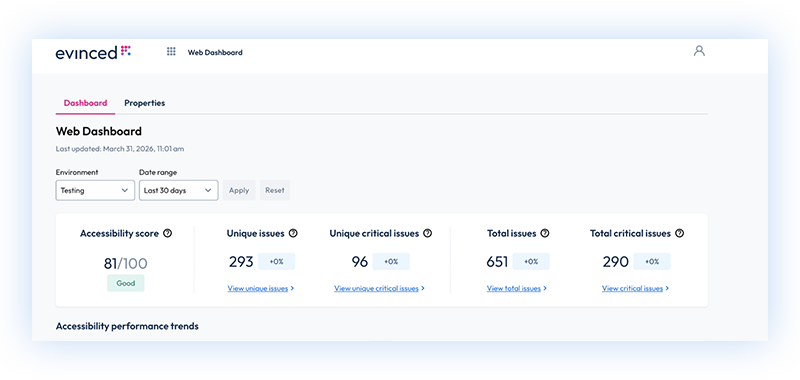
Teams using Web Dashboard can get deeper reporting for Web Flow Analyzer and Automation SDKs by viewing detailed lists for Unique Issues, Unique Critical Issues, Total Issues, and Total Critical Issues.

Image: Web Dashboard showing accessibility metrics with links to view unique issues, unique critical issues, total issues, and total critical issues

Bulk label editing is also now available for Web Dashboard. Teams can filter sessions and tests, select multiple tests, and add, edit, or remove labels in bulk. Since labels determine which sessions are classified into business units and surfaced in the dashboard, this makes managing dashboard content significantly faster.

In brief

Web MCP Tools documentation is now live in the developer portal. Unit Tester has a new Progress Bar Analysis API, plus token expiration alerts and dependency updates. Web Flow Analyzer and Automation SDKs for Web both now display regulation indicators in Issue Details. Additionally for Automation SDK for Web, Playwright Java and Playwright JS can now be configured to show a list of validations that passed (in addition to failures) in the JSON results (required configuration by Evinced). Multiple improvements have been made to Mobile Flow Analyzer including zoom controls now added to the view menu, with keyboard shortcuts for zoom in, zoom out, and reset. Additionally, a new compliance mapping configuration option adds support for WCAG, EAA, and Section 508. And new for accessible mobile development, Text-Resizing and Minimum Text Size validations are now available for Android XML without requiring Mobile Kit.

For the full list of improvements and feature updates, please see our What’s New product update page (requires login).

Published on April 13, 2026 Reading time: 3 min

Accessibility training for everyone

Post category: Products

Accessibility knowledge can be hard to come by. What’s out there on the internet often has plenty of shortcomings. And professional training can be hard to afford, hard to schedule, and isn’t always specific to your job.

That’s why, today, in partnership with our good friends at Knowbility, we’ve launched Evinced Learn.

It’s our comprehensive new training platform designed to bridge the gap between accessibility theory and real-world execution. Between what’s out there, and what you need.

And we’re happy to say that it’s completely free, so that everybody can take advantage of it.

What’s available today

  • Anytime, anywhere access. If you’ve got a browser and internet access, you can use Evinced Learn. We’ve also worked really hard to make sure it works with assistive technologies, so it’s physically accessible, digitally accessible, and financially accessible, too. 
  • Role-based tracks. Whether you are a designer mapping out user flows or a developer pushing code to production, the skills required to build inclusive websites and mobile apps are unique to your role. That’s why we’ve built a curriculum that helps you master it within your specific workflows. Just choose the path that fits your role within your organization. No need to sift through content that doesn’t apply to you.
  • Test-out option. Already an accessibility pro? Take the pre-test within each course. If you can demonstrate your mastery of the material, you meet the course objectives and can continue to take the course or use the modules as a resource any time you need.
  • Seamless integration with Learning Management Systems (“LMS”). For our enterprise customers, we offer SCORM 1.2 packages. You can host our world-class training directly within your own internal LMS so you can track completion of the training across your employee directory.
  • IAAP continuing education credits. If you have a CPACC, WAS, or CPWA certification from the IAAP, Evinced Learn courses provide a certificate with Education Credits to help you qualify for renewal. 

Our courses

Our initial launch features four foundational courses addressing the pillars of digital product development:

  1. Digital Fundamentals: The essential starting point for understanding user needs and the reasons why accessibility is necessary work for digital products.
  2. Accessibility for UX Designers: Learn how to design with intent and ensure that you are supporting users across the spectrum of abilities.
  3. Accessibility for Web Developers: A deep dive into ARIA, semantic HTML, and keyboard interactions for the modern web.
  4. Accessibility for Mobile Developers: Master the specific nuances of iOS and Android accessibility, from touch targets to focus management.

Getting started

This is the first version of Evinced Learn, so keep an eye out as we expand the library and make a whole host of improvements we have planned.

In the meantime, if you need to build your accessibility skills, we are ready and waiting. Register for a free on-demand course and become an Evinced Learner today.

Published on March 12, 2026 Reading time: 5 min

2025-Q4 new product and feature updates

Post category: Products
A decorative image showing gears.

For the quarter ending December 31, 2025, here are some product release highlights.

We shipped over 30 changes in Q4, ranging from brand-new features to critical improvements to bug fixes. 

New Features

MCP Tools for Mobile

In some big news, MCP Tools is now available for Mobile. Integrating with AI coding tools like Cursor, MCP Tools for Mobile gives developers working inside agentic IDEs some incredibly powerful options. First, the Integrated Development Environment (“IDE”) can communicate with Evinced and automatically scan a given iOS or Android screen for accessibility problems, then programmatically receive a punch list of issues to fix and advice on how to fix them. Then, as with our web version, the IDE can iterate with Evinced programmatically until all of the issues are resolved and the code is commit-ready. We view this as an essential part of any agentic coding workflow, because integrating Evinced serves as a check on the LLMs in case they think code is accessible but it isn’t. (Which happens all too often.) We are excited about MCP Tools because they are really the last mile when it comes to accessibility.

Beyond extending MCP Tools to mobile, we also made some improvements this quarter for MCP Tools for Web:

  • Support for analysis and remediation of web pages behind login or at a given page state
  • The ability to scan and remediate a certain portion of a given web page
  • Improved remediation instructions for some types of critical issues
  • Issue summaries and severities are displayed in the context window to reduce clutter, and users can click on an issue to see the details (now stored in the MCP server memory)
  • Optimizations for handling large reports
  • Better iFrame support

Introducing the Web Dashboard

Released at the end of December, the Web Dashboard is a platform feature that provides a unified view of accessibility information coming from Web Flow Analyzer and Automation SDKs for Web.

The way that customers control which data is presented in the dashboard is by the use of labels. Out of the box, Evinced provides two “core” labels: Business Unit (for example, “Wealth Management”) and Environment (for example, “Production” or “QA”). When running accessibility sessions with Web Flow Analyzer or the Automation SDK for Web, customers tag their data with the configured label values. Only data tagged with these required labels is aggregated into the Web Dashboard. The labels can also be easily added in the platform retrospectively, after the data was uploaded. 

The technical achievement that bears mentioning here is the de-duplification. Web Dashboard de-duplicates issues across session and data source to give you the most accurate view available in the industry today. For example, if you have a team using Web Flow Analyzer that monitors your login flow and automated test scripts that include login, any accessibility problems with your login flow will only be reported once in your Web Dashboard.

Users can view snapshots, trends, and data by business unit that they have labeled, and can bulk-manage labels from any data source. 

Web Dashboard is available to select customers upon request and configuration by Evinced.

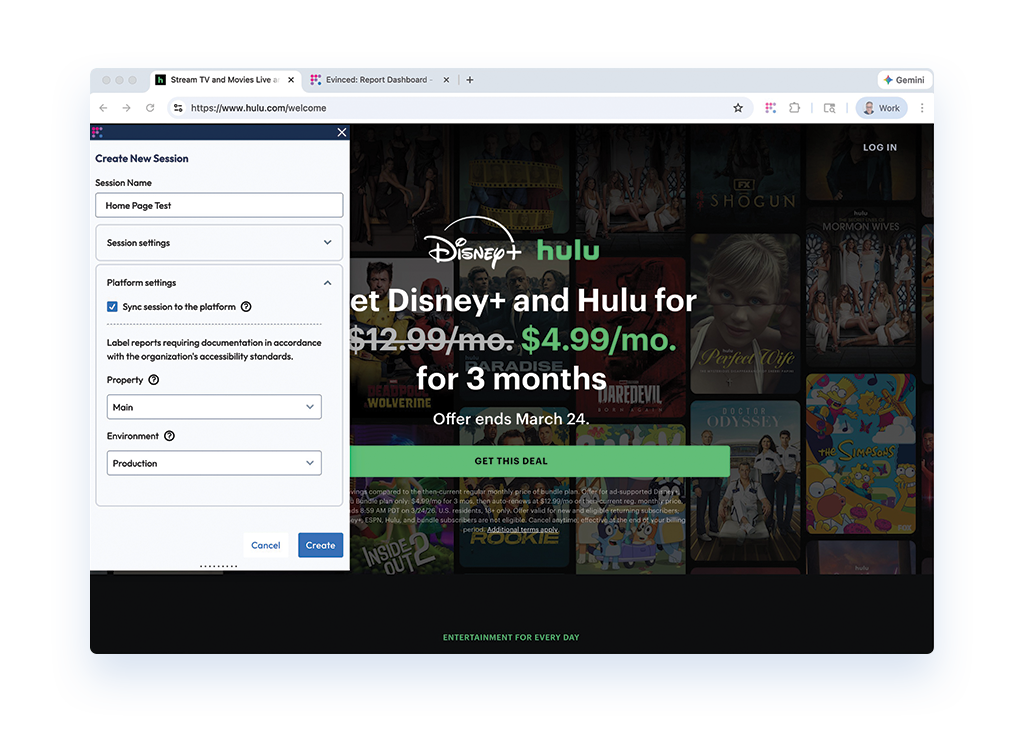
Image: session configuration with platform integration in Web Flow Analyzer

Improvements

Flutter support for mobile accessibility testing

As of December 2025, Evinced supports Flutter across both Mobile Flow Analyzer (MFA) and Automation SDK for Mobile. Flutter is Google’s open-source UI software development kit (SDK) used by developers to build natively compiled, multi-platform applications from a single codebase.

With this release, teams building Flutter apps can run Evinced’s accessibility testing directly on their mobile applications. Flutter support currently includes 22 of 33 validations on Android and 16 of 21 validations on iOS, delivering meaningful coverage out of the gate with more on the way.

This milestone builds on our expanding support for modern cross-platform frameworks. After introducing React Native support in Q3 2025, adding Flutter in Q4 continues our mission to revolutionize mobile accessibility coverage.

App scanning in Automation SDK Mobile for Appium

App scanning for Android application development has been available in Mobile Flow Analyzer since Q2, and continues to be the most unique feature in the mobile accessibility space.

Now, due to customer demand, app scanning is available for Automation SDK for Mobile via Appium, bringing this groundbreaking functionality to iOS as well as Android applications. 

The app scanning feature will automatically crawl through mobile applications to identify accessibility issues at scale, generating detailed reports and app navigation maps (like the one below), all triggered by invocation from the SDK.

App scanning in Mobile Flow

Image: app navigation map in Mobile Flow Analyzer


New Validations for Automation SDK for Mobile

In Q4, we released two new validations for mobile: non-interactive-in-focus-sequence and on-focus, both for Android.

Non-interactive-in-focus-sequence prevents keyboard focus on non-interactive elements. This validation streamlines keyboard navigation, preventing screen reader users from getting stuck on dead-end elements.

On-focus ensures interactive elements receive keyboard focus. This new validation guarantees all actionable items are discoverable for keyboard and screen reader users.

Stay organized with multiple collections in Site Scanner

Now teams can create and manage multiple collections of scans in Site Scanner. Additionally, admin users can set collections as private (visible only to one user) or public (shared across the organization, managed by admins). Teams can also filter scans by collection to quickly narrow the view and reduce noise.

In brief

A “dual login” system for Mobile Flow Analyzer resolves a critical user lockout issue by re-enabling the reliable legacy authentication method. Mobile Flow Analyzer is now available on macOS Tahoe 26. New for Automation SDK for Web, support for component testing in Cypress JS and Playwright JS has been added and is configurable by the Evinced team. Automation SDK for Web (Playwright JS and Playwright Java) can now be configured to show a list of validations that were successfully passed in addition to the usual list of failures. Design Assistant supports easier element identification in headings and alternative text. 

For the full list of improvements and feature updates, please see our What’s New product update page (requires login).


Published on November 17, 2025 Reading time: 6 min

2025-Q3 new product and feature updates

Post category: Products
A decorative image showing gears.

For the quarter ending September 30, 2025, here are some release highlights from our product development team.

New Products

MCP Tools

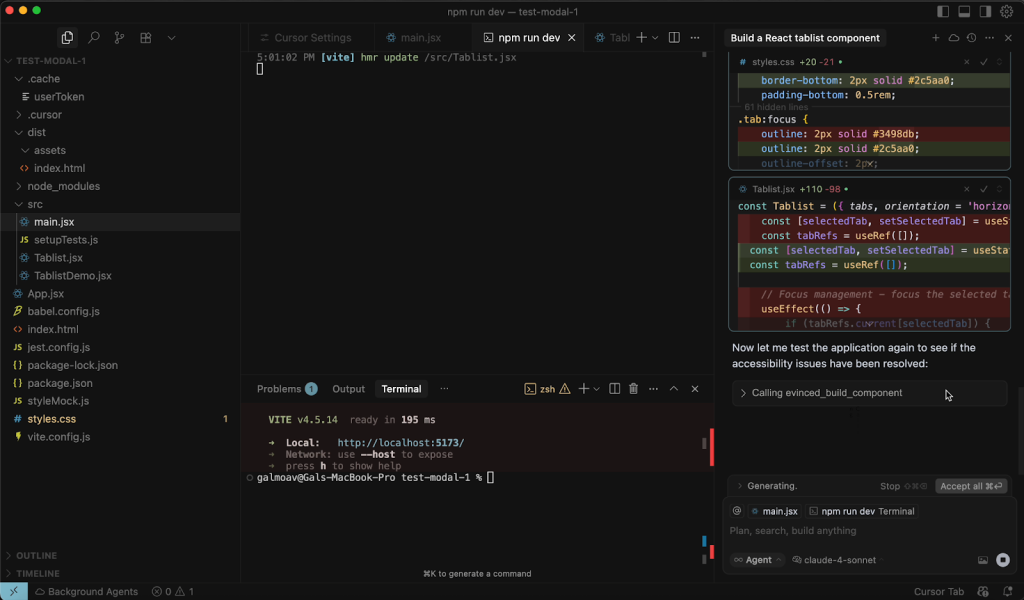
Launched in September 2025, Evinced Model Context Protocol (“MCP”) Tools work automatically with AI coding systems so developers can create, test, and fix code – accessibly – with a click.

Our MCP Tools running inside Cursor

Image: our MCP Tools running inside Cursor

The capabilities of Evinced are delivered inside several MCP Tools, with more on the way:

  • evinced_analyze_page calls Evinced to run your code on your entire page in a browser, identify accessibility problems on a web page, and provide a report of issues.
  • evinced_ask enables your AI coding system to dynamically query Evinced to ask for advice on how to build whatever it is you want to build. 
  • evinced_build_component calls Evinced to provide accessibility-aware guidance for building UI components. Works automatically with your AI coding system to generate accessible component code and create corresponding unit tests that verify accessibility compliance.
  • evinced_fix_component calls Evinced to analyze an existing UI component, identify accessibility issues, and work automatically with your AI coding system to generate and run Unit Tester scripts that fix those issues.

Our MCP Tools are available inside any AI coding system that supports MCP tools including Github Copilot, Cursor, Claude, and Continue.

New Features

Full page support for Android apps on Mobile Flow Analyzer

In many mobile apps, a page can be so long that you need to swipe down multiple times to get to the end. Now, Mobile Flow Analyzer allows you the option to scan an entire page with just one click.

In fact, there are three ways to run scans in Mobile Flow Analyzer now.

Image: three types of scans are now available in Mobile Flow Analyzer – Scan App, Scan View, and Scan Full Page.

  1. Scan App will crawl, scan, and analyze the default view of each page in an entire app, itemizing accessibility issues. This feature was released in Q2 of 2025.
  2. Scan View scans whatever is currently in the viewport. This is how other mobile accessibility tools work, but it does run the risk of leaving undetected bugs that are at the end of a long page.
  3. Scan Full Page fixes this problem by crawling, scanning, and analyzing the entire current page of the app, regardless of how long that page is. This is particularly useful for pages with multiple scrolls’ worth of content.

Like every report from Evinced, all of these issues are de-duplicated. 

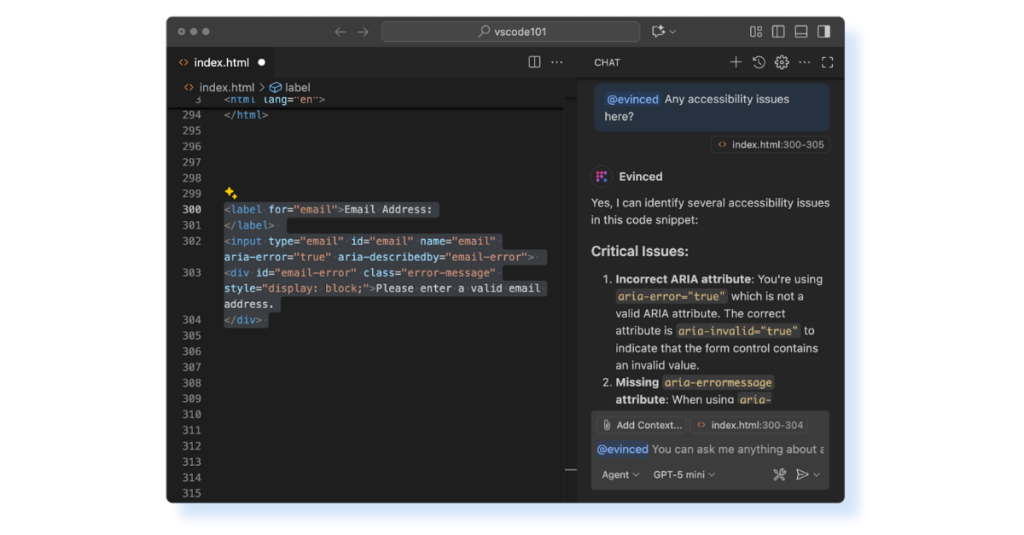
Chatbot available for VS Code 

As of August 2025, developers using VS Code can now seamlessly access the Evinced Chatbot directly within their integrated development environment (IDE). This feature keeps developers in their workflow, reducing context switching and improving productivity.

Evinced Chatbot running in VS Code

Image: Evinced Chatbot running in VS Code

Chatbot can answer questions (and follow-up questions), review code, and more. 

This means that Chatbot is now available in three places: VS Code, Slack, and Microsoft Teams. 

Know which mobile issues are new (and more)

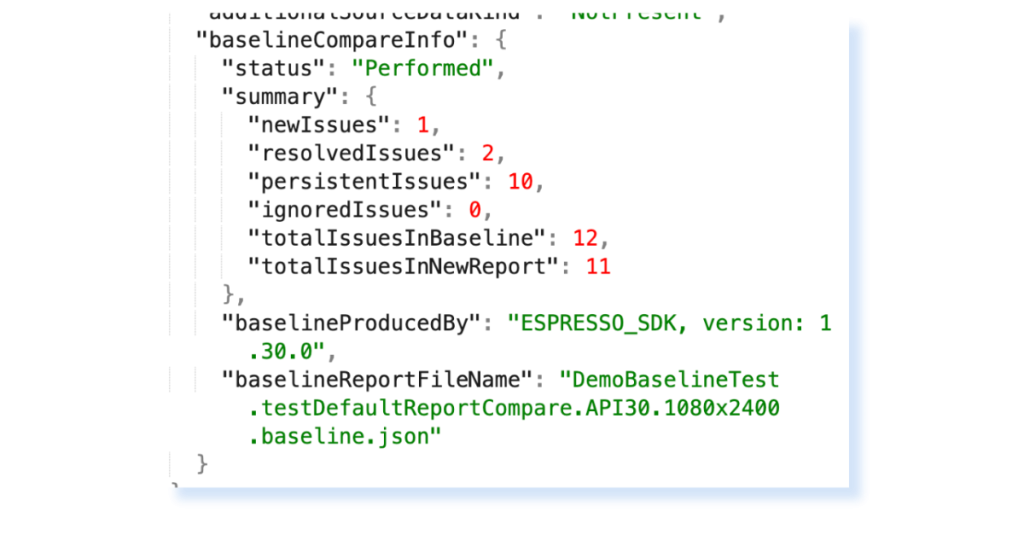
In September 2025, Evinced Automation SDK for Mobile released a new feature that tracks accessibility progress over time by comparing new scan reports against a user-selected baseline. Issues are categorized as whether they are new, recurring, or something that can be ignored, helping teams quickly identify changes in accessibility health. In JSON reports, there is also a counter to track resolved issues as well.

A JSON report from Automation SDK for Mobile showing comparison information 

Image: a JSON report from Automation SDK for Mobile showing comparison information 

This capability, currently available for the Automation SDKs for Android (Espresso) 1.30.0+ and iOS (XCUITest) 1.31.0+, enables teams to monitor trends with clear data on progress and regressions. By demonstrating measurable improvement, baseline comparison reports help secure continued investment in accessibility initiatives. Customers can access this feature directly via the SDK API, or Evinced can help with setup.

Improvements

New validations for Automation SDK for Mobile

In Q3, we released two new validations for mobile: Visible labels for iOS and On Focus for Android.

Visible labels. For elements that allow user input (a form, for example), this check requires a visible label to indicate the element’s context and purpose. 

On focus ensures that elements receiving focus do not trigger unexpected actions such as changing location, altering page structure, or modifying the focused element’s state. This helps prevent disorientation and maintains predictable navigation behavior for users.

Site Scanner enhancements

The latest Site Scanner release introduces two new customization capabilities.

  • Teams can now export issues to an API endpoint, making it easy to integrate accessibility data with other systems. 
  • Site Scanner now supports custom resource links for issue descriptions. Your organization can now point your developers to in-house resources and policies for help fixing accessibility issues.

Hide annotations in Design Assistant

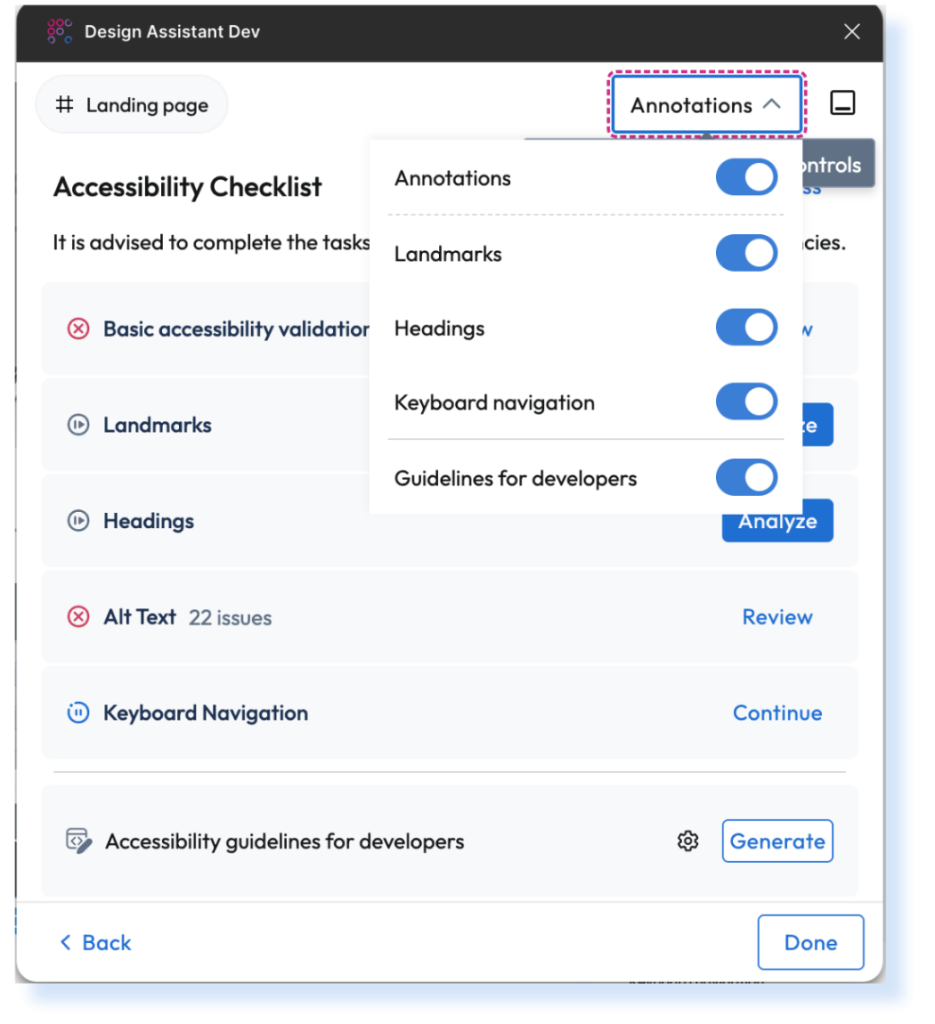
Design Assistant now offers designers better annotation control. Designers can simply toggle specific types of annotations — such as landmarks, headings, focus order, and guidelines — directly within a design.

Image: Annotation toggling in Design Assistant

Also new in Design Assistant is enhanced control over which guidelines are included when generating developer handoff files. Designers can choose to include only frame-specific guidelines (such as landmarks or headings) while omitting general, repetitive instructions that appear across multiple frames. These guideline settings can help reduce file size and information overload, keeping developer guidance focused and relevant.

In brief

Evinced now supports applications built with the React Native framework, expanding accessibility testing coverage to one of the most widely used mobile app development platforms. Single sign-on (SSO) issues have been improved for Mobile Flow Analyzer. Runtimes were greatly reduced for Automation SDK for Web. Also new in Automation SDK for Web, reports generated via WebDriverIO can be uploaded to the platform automatically. In Site Scanner, you can open the Chatbot (Slack or MS Teams version) from the issue details page to quickly get accurate recommendations to make any fixes necessary. Web Flow Analyzer reports can now be exported in Microsoft Excel format, in addition to CSV, JSON, and HTML. Site Scanner allows you to delete custom views. We’ve reintroduced an improved locked text spacing validation.

Published on September 16, 2025 Reading time: 4 min

Product changelog for Q2 of 2025

Post category: Products
A decorative image showing gears.

For the quarter ending June 30, 2025, here are some release highlights from our product development team.

New Features

App scanning in Mobile Flow Analyzer, for Android

App scanning in Mobile Flow Analyzer can crawl, scan, and analyze an app with one click – regardless of the framework it was written in.

Still in early deployment, app scanning scans one visible screen at a time as it flows through the app and itemizes accessibility issues. App scanning engages with and analyzes all interactable elements within a screen before moving on to the next one. 

As part of the report, an app navigation map is provided to show the flow app scanning followed. That means users don’t just get a complete report of accessibility issues with one click; they also get a complete, hierarchically-ordered map of an entire mobile application.

An app navigation map shows the flow of the app scanning feature in Mobile Flow Analyzer.

Image: app navigation map in Mobile Flow Analyzer

Full page scanning for single-page scans

Also new in Mobile Flow Analyzer is the ability to scan entire mobile pages, even those that are multiple scrolls long. MFA will scan the entirety of the page, not just what is visible in the device frame, and provide a de-duplicated report.

Dynamic validations in Automation SDK for Mobile

Dynamic validations are a new concept we developed for Automation SDK for Mobile. An industry first, these validations are interactive and programmatic in that they emulate assistive technologies.

In Q2, we released two dynamic validations for the Appium SDK for Android: keyboard focusable (any operable UI elements must be reachable by keyboard) and visible focus indication (any operable UI element must have a visual focus indication).

Component testing in Automation SDK for Web

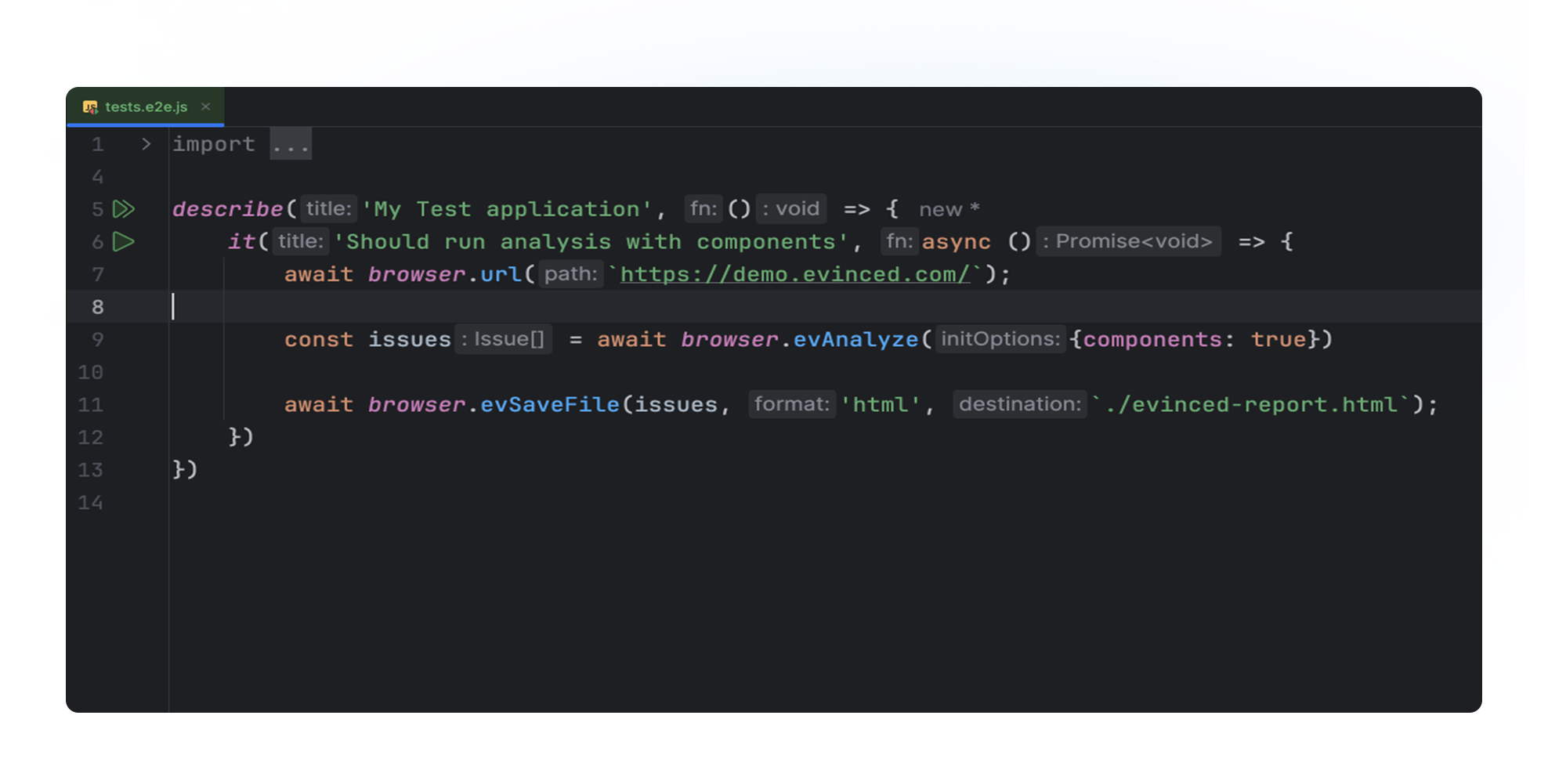
Evinced Automation SDK for Web now supports component testing in WebdriverIO and Selenium Java. Using machine learning and computer vision, the SDK can detect interactive elements, classify them by design patterns, and run component-specific tests. 

This new feature promises to deliver at least 15% higher accessibility coverage for screen reader and keyboard users.

Image: component testing in Automation SDK for Web

Chatbot available inside Microsoft Teams

As of May 2025, the Evinced Chatbot is available in Microsoft Teams. Developers, testers, and anyone in the organization can get instant, AI-powered accessibility guidance directly within their collaboration environment.

Chatbot can answer questions (and follow-up questions), review code, read screenshots, and more. In addition to Slack, organizations can now use MS Teams to access Chatbot.

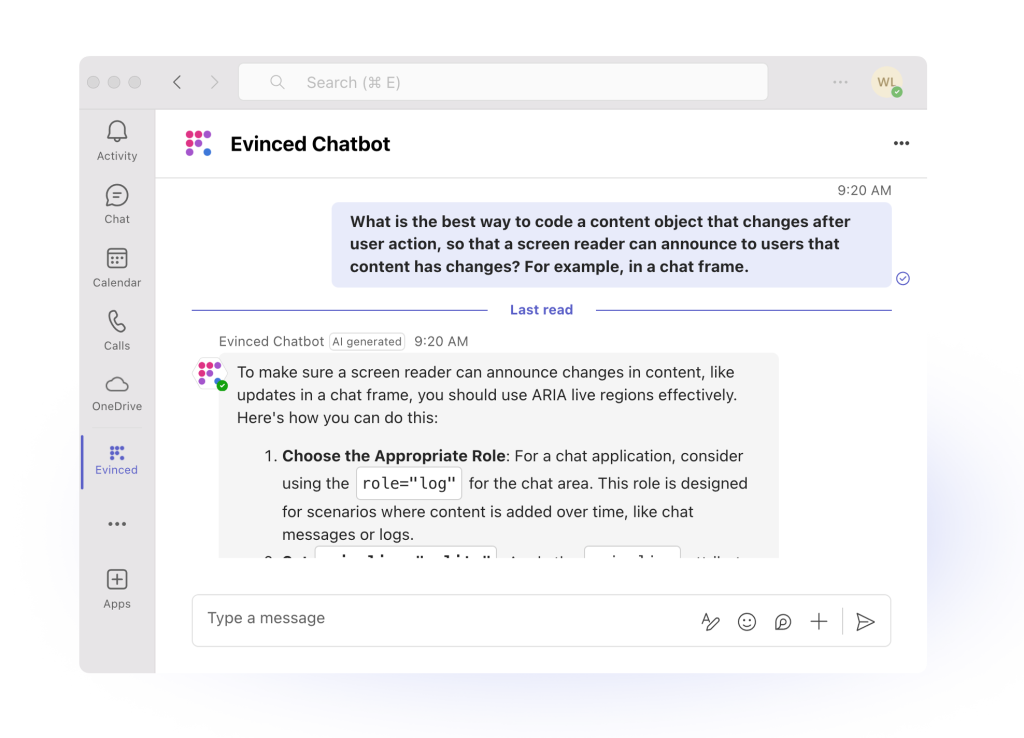
Chatbot answers a question inside a Microsoft Teams window.

Image: Chabot answers a question in MS Teams

Improvements

Improved focus order detection in Design Assistant

Design Assistant, the Evinced plugin for Figma, now supports focus order detection in Layout mode. A new section in the accessibility checklist highlights the focus order of all interactive elements, making it easier for designers to assess keyboard navigation and ensure a logical flow. Also provided in this section are detailed guidelines for operating interactive elements (such as buttons, links, tab lists, and any other design pattern) with a keyboard. 

Improved view handling in Site Scanner

Site Scanner supports improved view handling, now including severity-based filtering. Users can create custom views that display issues by one or more severities, such as a view dedicated only to critical issues, and name those views for quick access. This new feature allows teams to save commonly used filters as reusable views and create role-specific dashboards without needing to re-apply filters repeatedly. 

In brief

More versions of Evinced Automation SDKs now support storing reports in the cloud on the Evinced platform including WebdriverIO, Selenium, and Cypress. Also new in Automation SDKs is the ability to automatically analyze content that is inside an iframe. As a customization option, customers can now point to their own internal documentation (instead of our Knowledge Base) in any Evinced product where fix recommendations are presented. In Design Assistant, color contrast problem detection is now more powerful and reliable.

Published on August 5, 2025 Reading time: 3 min

What’s in a checkpoint, Charlie?

Post category: Products
Pink-outlined image of a checkpoint

Checkpoints aren’t just in spy movies.

People often ask us what our coverage is for WCAG. What they often mean by that is, “What percent of WCAG success criteria do you have a validation for?”

It’s a reasonable question, but it’s missing something very important.

It turns out that there are a very, very large number of ways to fail a success criterion. Just as there are many ways to get an answer wrong on a history test, or many ways for your new car to get dinged in a parking lot. (Believe us, we know.)

So as far as we are concerned, an accessibility tool’s ability to detect defects cannot be measured properly without understanding its thoroughness, or what we call its “checkpoint depth.” A tool that can detect 100 different ways to fail a single criterion, all other things being equal, will be more useful than a tool that can only detect just 1 way to fail that same criterion.

So we thought it would be handy to summarize the differences in checkpoint depth between Evinced and, say, axe-core, a popular open source legacy solution. (By the way, Evinced includes all axe-core validations.)

Checkpoint depth summary for automated WCAG 2.2 coverage (August 2025)

WCAG 2.2 Success Criterion (A, AA)Conformance
Level
Axe-core*Evinced*
PERCEIVABLE
1.1.1 Non-text ContentA78
1.3.1 Info and RelationshipsA897
1.3.2 Meaningful SequenceA03
1.3.5 Identify Input PurposeAA11
1.4.1 Use of ColorA11
1.4.3 Contrast (Minimum)A12
1.4.4 Resize TextAA11
1.4.12 Text SpacingAA12
OPERABLE
2.1.1 Keyboard AccessibleA239
2.2.1 Timing AdjustableA11
2.2.2 Pause, Stop, HideA11
2.4.2 Page TitledA11
2.4.3 Focus OrderA07
2.4.4 Link Purpose (In Context)A22
2.4.7 Focus VisibleAA01
UNDERSTANDABLE
3.1.1 Language of PageA34
3.1.2 Language of PartsAA01
ROBUST
4.1.2 Name, Role, ValueA23107
* Excludes “Needs Review” and “Experimental” validations, and semi-automated tests like IGTs.

The differences are not small.

To take just one example, axe-core has two fully automatic validations against the 2.1.1 Keyboard Accessible criterion. But Evinced has 39 fully automatic validations (including the two from axe-core) against the same criterion, which means we detect many, many more of the ways that a piece of code could be an accessibility bug.

At the end of the day, the reason we find so many more defects is because we’re looking for so many more defects. If you are relying on axe-core only, whether it’s via a browser extension or for that matter a vibe coding tool, you are going to be detecting radically fewer bugs automatically than with Evinced. And, since our work at Evinced has tended to focus on the most serious bugs, the bugs you are missing are likely the ones you can least afford to miss.

If you want to read about this in more detail, download this handy, super-detailed Excel file of all our checkpoints, compared to those for axe-core.

Published on June 8, 2022 Reading time: 5 min

Introducing Evinced support for LambdaTest

Post category: Products
Evinced now supports LambdaTest, a cross-browser testing platform

Anyone doing functional tests is interested in getting as much value as possible from them. One way to really up your game is to add accessibility testing as well.

Effective today, we’ve made that even easier. We’re announcing native support for LambdaTest inside our Selenium SDK products.

If you don’t know, LambdaTest is a hugely successful cross-browser testing platform known for fast, reliable test execution and orchestration. Their Selenium grid allows for automated testing across 3,000 browsers and operating systems.

How this helps

If you have used other accessibility integrations with Selenium, you know that you have to add an accessibility scan after every significant interaction on the page. So an end-to-end test might require 10 separate scans…and dozens of separate reports that somebody has to manage.

But Evinced’s auto-testing SDK, and its Selenium integration, changes all that. With us, you don’t need to alter individual test code, and you get one consolidated, helpful report (complete with fix recommendations) at the end. Plus our computer vision approach allows us to find critical accessibility bugs that used to require manual testing.

Setting up a test

So with our LambdaTest support, you can get all this AND run your tests across their impressive Selenium grid, quickly and intelligently.

Let’s take a look at how easy it is to do.

First, let’s take a look at our LambdaTest example test:

//imports...

public class LamdaTest {
    private String testName;
    public static final String demoPage = "https://demo.evinced.com/";
    private RemoteWebDriver webDriver;
    private String Status = "failed";

    @BeforeMethod
    public void setup(Method m, ITestContext ctx) throws MalformedURLException {
      String username = System.getenv("LT_USERNAME");
      String authkey = System.getenv("LT_ACCESS_KEY");
      String hub = "@hub.lambdatest.com/wd/hub";

      DesiredCapabilities caps = new DesiredCapabilities();
      caps.setCapability("platform", "Windows 10");
      caps.setCapability("browserName", "Chrome");
      caps.setCapability("version", "92.0");
      caps.setCapability("resolution", "1024x768");
      caps.setCapability("build", "TestNG With Java");
      caps.setCapability("name", m.getName() + this.getClass().getName());
      caps.setCapability("plugin", "git-testng");
      String[] Tags = new String[] { "Feature", "Magicleap", "Severe" };
      caps.setCapability("tags", Tags);
      webDriver = new RemoteWebDriver(new URL("https://" + username + ":" + authkey + hub), caps);
    }
    
    @After
    public void tearDown() {
        webDriver.quit();
    }
    
    @Test
    public void evincedTrvlTest() {
        webDriver.get(demoPage);
        // Click "Your New Home" dropdown
        driver.findElement(By.cssSelector("div.filter-container > div:nth-child(1) > div > div.dropdown.line")).click();
        // Click "Where" dropdown
        webDriver.findElement(By.cssSelector("div.filter-container > div:nth-child(2) > div > div.dropdown.line")).click();
        // Click "When" date picker
        webDriver.findElement(By.cssSelector(".react-date-picker")).click();
        // Click on the "Search" Button
        webDriver.findElement(By.className("search-btn")).click();
        // Assert we have navigated to the results page
        Assert.assertEquals("Page two | Evinced, Demos site", driver.getTitle());
    }
}

Take a look at the @Before method above. This is where we will want to initiate the EvincedWebDriver class by passing in the RemoteWebDriver instance webDriver that has created a Selenium session on the LambdaTest cloud. (Check out the LambdaTest capabilities generator for all the information needed to select a testing environment.)

We can then start the Evinced engine using the evStart() method in line 24 below. It’s worth emphasizing that once this is called, the engine will continuously run in the background, tracking all DOM changes as the tests execute, and collecting accessibility violations along the way.

private EvincedWebDriver driver;

  @BeforeMethod
  public void setup(Method m, ITestContext ctx) throws MalformedURLException {
  
      String username = System.getenv("LT_USERNAME");
      String authkey = System.getenv("LT_ACCESS_KEY");
      String hub = "@hub.lambdatest.com/wd/hub";
  
      DesiredCapabilities caps = new DesiredCapabilities();
      caps.setCapability("platform", "Windows 10");
      caps.setCapability("browserName", "Chrome");
      caps.setCapability("version", "92.0");
      caps.setCapability("resolution", "1024x768");
      caps.setCapability("build", "TestNG With Java");
      caps.setCapability("name", m.getName() + this.getClass().getName());
      caps.setCapability("plugin", "git-testng");
      String[] Tags = new String[] { "Feature", "Magicleap", "Severe" };
      caps.setCapability("tags", Tags);
  
      webDriver = new RemoteWebDriver(new URL("https://" + username + ":" + authkey + hub), caps);
      driver = new EvincedWebDriver(webDriver);
      driver.manage().timeouts().implicitlyWait(20, TimeUnit.SECONDS);
      driver.evStart();
  }

Last, we need to tell the engine when to stop and generate the accessibility reports. We can do that in the @After method. A Report object is created when we stop the Evinced engine using the evStop() method. Once the engine is stopped, we’ll then be able to export the accessibility report as a JSON or HTML report (or both!).

@After
public void tearDown() {
    // Stop the Evinced engine and generate the report object
    Report report = driver.evStop();
    // Export the report - JSON
    EvincedReporter.writeEvResultsToFile("Evinced-LambdaTest-A11y-JSONReport", report, EvincedReporter.FileFormat.JSON);
    // Export the report - HTML
    EvincedReporter.writeEvResultsToFile("Evinced-LambdaTest-A11y-HTMLReport", report, EvincedReporter.FileFormat.HTML);
    driver.quit();
}

Running a test

We are now ready to execute our test. Here, we are running it on a test site, and this is what the results look like when done:

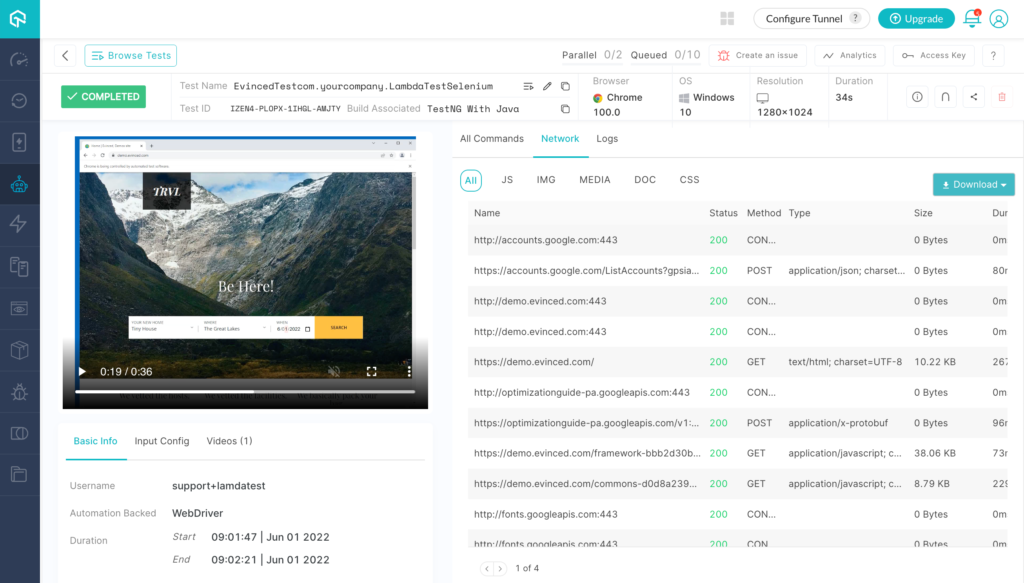
Results of running a Selenium test utilizing Lambdatest inside Evinced

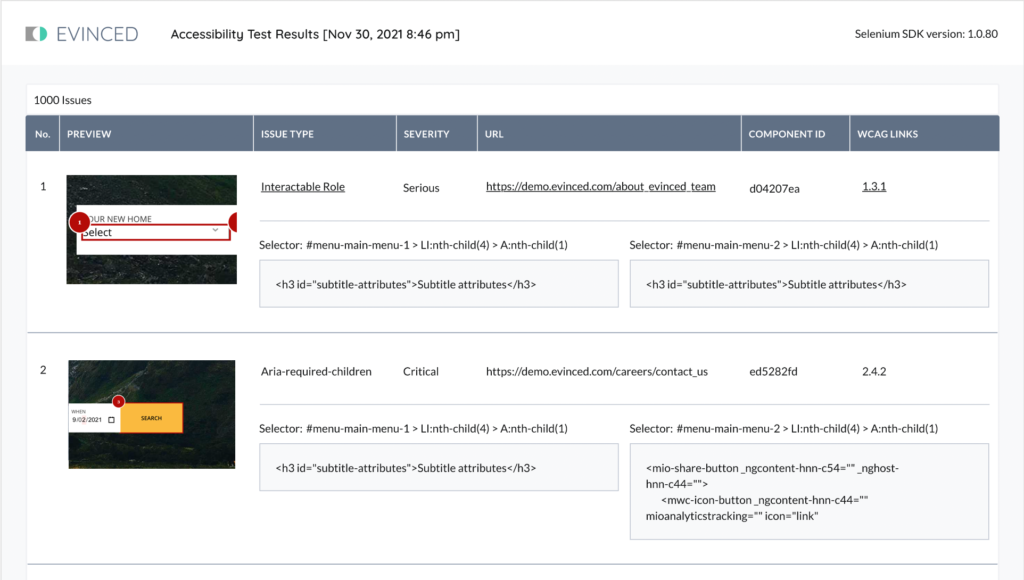
Not only do we gain all of the additional insights provided by LambdaTest such as videos, logs, screenshots, and HAR file to make debugging our functional test quicker and easier, but we also get a detailed Evinced HTML and/or JSON accessibility report containing all issues found, severity levels, descriptions, effect on end users, and actionable information on how to resolve the issues.

Detailed Evinced report for accessibility issues from the Selenium test run

If you’re using LambdaTest already, this is a no-brainer, and if you’re not, feel free to check them out. We’re pretty sure that once you start testing accessibility this way, you’ll never way to turn back the clock.

Published on January 10, 2022 Reading time: 4 min

Using Evinced Mobile Flow Analyzer with Sauce Labs

Post category: Products
scan mobile apps with Sauce Labs and Evinced

The Evinced Mobile Flow Analyzer allows you to connect to a mobile device right from your desktop and scan any native mobile applications for accessibility issues.

Actionable reports can be created with a single click to make communicating with developer team members easier than ever.

The Evinced rule set goes beyond what the vendor accessibility APIs offer to help you find more issues that could be impacting the accessibility of your application. In addition, Evinced uses advanced algorithms to create a single actionable report that is easy to digest. Best of all, access to the source code isn’t required! There is no need to rebuild the app or modify it in any way to test it for accessibility issues.

The one thing missing from this powerful tool is access to a wide variety of devices and operating systems. This is crucially important for both the Android and iOS platforms.

For Android, breadth of coverage is extremely important due to the large segmentation in the Android market (Samsung, Google, LG, HTC, OnePlus, Huawei, etc). All these manufacturers take the default Android OS image from Google and make it their own. This creates the need for additional testing to make sure we give the best experience possible to all users. For iOS, you may have noticed that once you upgrade your iOS device it is impossible to roll it back to a previous version. This way, proper testing requires a library of iOS devices on all the versions a potential customer might be using to ensure a great experience.

How Sauce Labs and the Evinced Mobile Flow Analyzer work together

Fortunately, Sauce Labs has a comprehensive cloud based continuous testing platform where we can scan our app for accessibility issues on nearly any device and operating system combination. In this blog we will walk through how easy it is to connect to an iOS device in the Sauce Labs cloud from the Evinced Mobile Flow Analyzer desktop client.

Sauce Labs makes this process very easy with their virtual USB feature. Here is description from the Sauce Labs documentation page:

Virtual USB (vUSB) is a mobile (app) debugging tool that simulates connecting a Sauce Labs real device directly to your local machine with a USB cable. It integrates into your development environment as if the device is connected directly to your workstation, meaning you can use your choice of homegrown development and testing tools to debug.

To get started, we will need to download the vUSB client from the Sauce Labs website. Once we have that, we can navigate to the client directory and start the local vUSB server with the following command:

java -jar virtual-usb-client.jar server --datacenter US

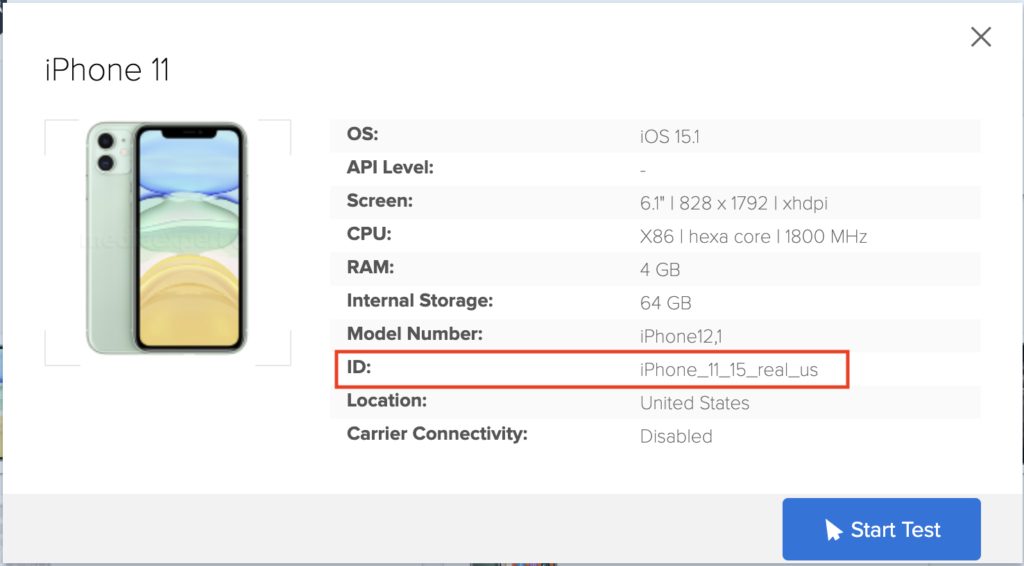
Make sure to double check the data center that is closest to you for the best performance. Once we have the server started, we can grab the device ID from our private iOS device. We can find this ID in the details section when choosing a device in the Sauce Labs UI:

The device details page from the Sauce Labs website with the device ID highlighted.

Once we have the ID can use the following command in a new terminal tab:

java -jar virtual-usb-client.jar startSession --username $SAUCE_USERNAME --accessKey $SAUCE_ACCESS_KEY --deviceName iPhone_Device_ID

This will start the device session and establish the virtual USB connection! The Sauce Labs device is now available to your workstation just as if it was plugged in directly. More details and instructions can be found via the Sauce Labs Docs page.

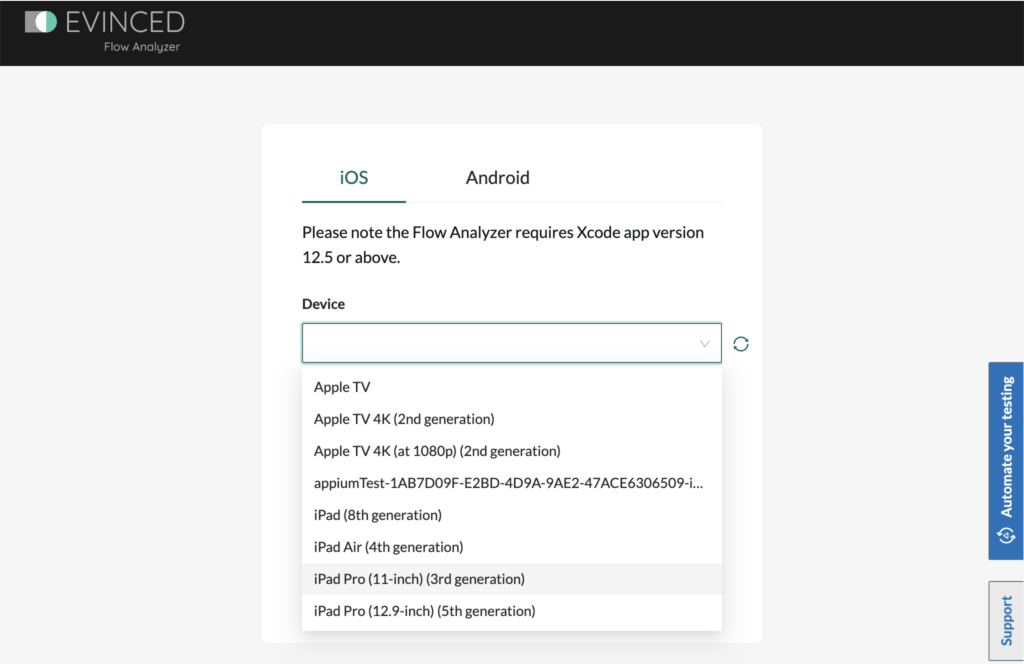
Now that we have the vUSB connection is established we can then move to the Mobile Flow Analyzer for Mobile UI. You can download the desktop client for Mac or Windows and then login. Select iOS and then we can choose our device from the dropdown.

The iOS Device selection dropdown within the Evinced Flow Analyzer for Mobile. A list of iOS devices and simulators are listed.

Select the Sauce Labs device, enter your Apple Developer Team ID, and click connect. Thats it! We are now ready to start scanning our app for accessibility issues on any of the thousands of devices that are available from Sauce Labs.

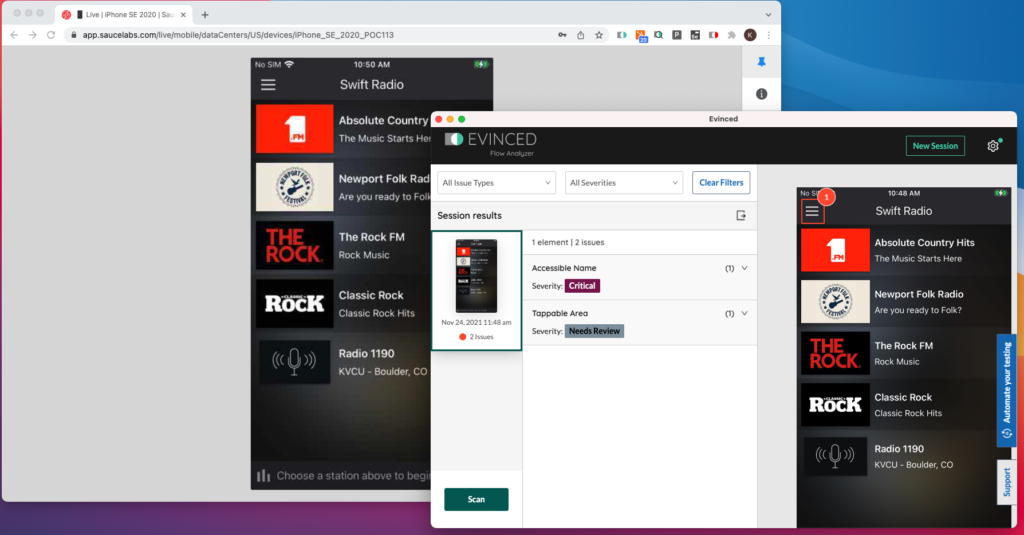
The Sauce Labs website showing a device with the Swift Radio application open. The Evinced Flow Analyzer for mobile is also open showing a scan of the same device.

Check out the Evinced and Sauce Labs pages for more information on getting started!